Combine Word, JPG and PDF Files Into One PDF in 3 Steps
A merge tool joins PDFs, so a Word file and phone photos need turning into PDFs first. Here is the three-step route, which step sends your file to a server, and what the finished PDF keeps.
On this page · 8 sections
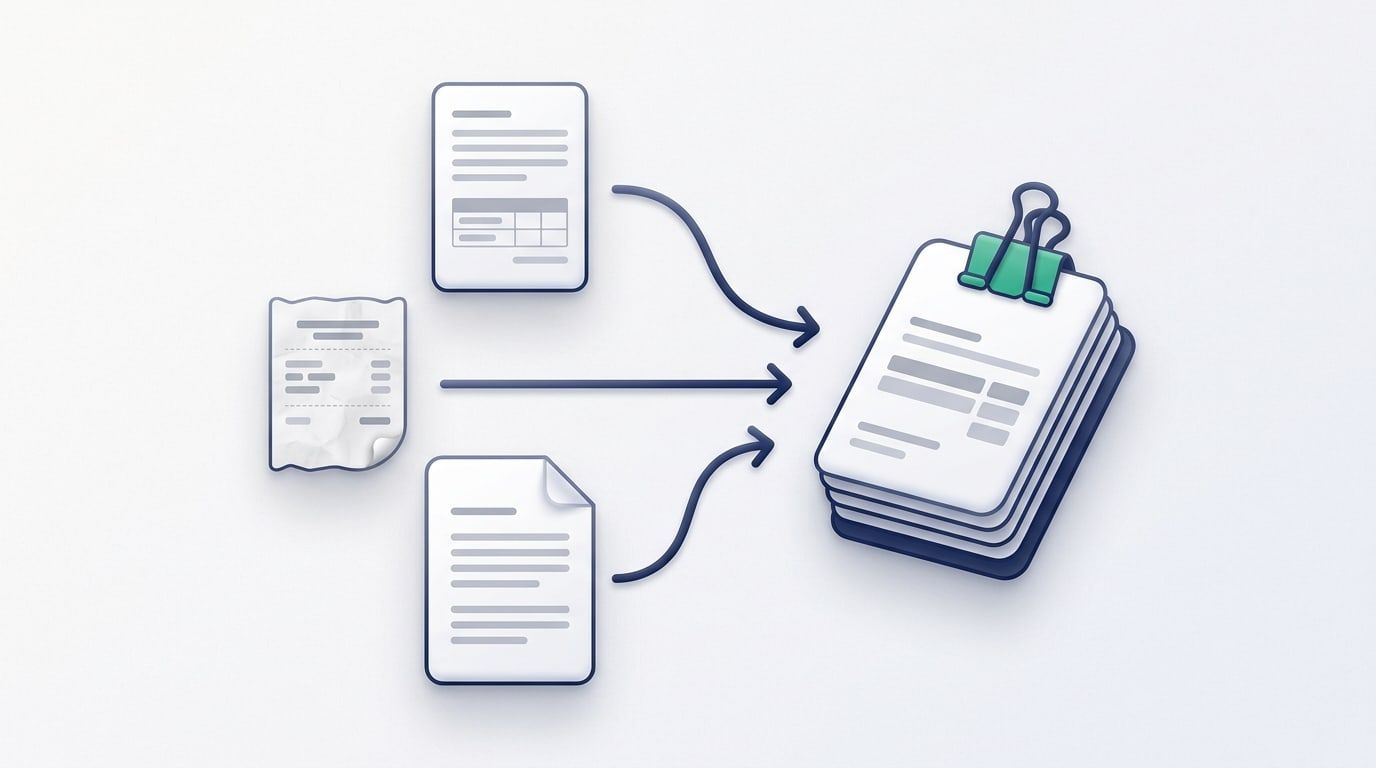
To combine Word and PDF into one PDF, turn the Word file into a PDF first, then merge it with your other PDFs. Photos work the same way: make them into a PDF, then merge. A merge tool joins PDFs, so every file has to be a PDF before the last step.
That gives you three steps: Word to PDF, photos to PDF, then merge. Two of the three never send your files anywhere. The one step that might, and how to avoid it, is explained below.
We'll use a common case: an expense claim written in Word, two receipts photographed on a phone, and a train invoice that arrived as a PDF. The goal is one file to send to the finance team.
Before you start: which step uploads what
- Photos to PDF: done in your browser with Image to PDF. Nothing is uploaded.
- Merging the PDFs: done in your browser with Merge PDF. Nothing is uploaded.
- Word to PDF: either in Word itself (nothing uploaded), or with our Word to PDF tool, which sends the file to our converter and deletes it right after conversion.
If the Word file is private, saving the PDF from Word is the most private route. If you don't have Word to hand, the online converter does the same job.
Step 1: Turn the Word file into a PDF
If you have Word: open the document, choose File > Save As and pick PDF as the format. The PDF is made on your computer and the text stays selectable.
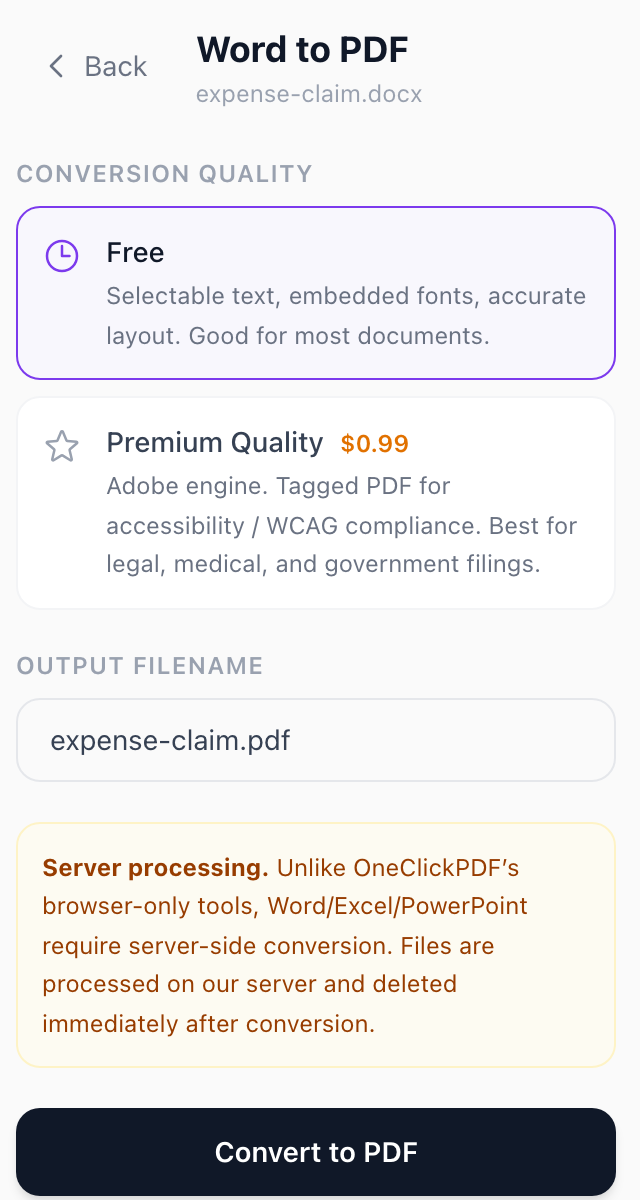
If you don't: open Word to PDF and add the .doc or .docx file. You'll see a preview, then press Convert to PDF. The free option keeps the text selectable and the fonts embedded. Files can be up to 4 MB, because the file has to be sent to our server to be converted. It is deleted immediately afterwards.
A spreadsheet or slides? Excel to PDF and PowerPoint to PDF work the same way, with the same 4 MB limit.
Step 2: Turn the photos into a PDF
Open Image to PDF and add your photos. It takes JPG, PNG and WEBP, and makes one page per picture. Drag the thumbnails into the order you want.
Pick the page size before you download. Fit to Image makes each page exactly the size of the photo. That's fine on its own, but next to A4 pages from Word the photo pages can come out a very different size. Choosing A4 (or US Letter, if that's what your Word file uses) gives every page the same size. The photo is centred and shrunk to fit if it's too big, and never enlarged.
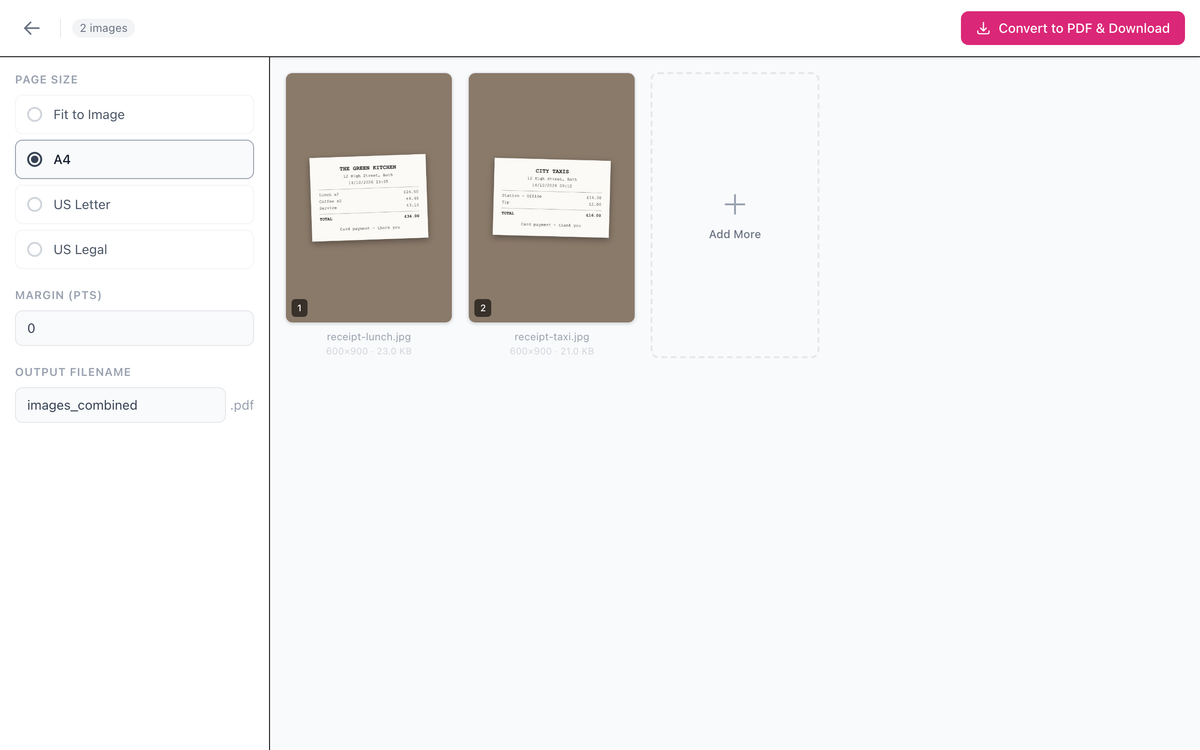
Photos taken on a phone in portrait come out the right way up. JPGs keep their original quality, because they are placed in the PDF unchanged.
iPhone photos (HEIC)
Image to PDF doesn't take HEIC, the format iPhones use by default. You can export the photos as JPG first. Or, as Apple's guide to iPhone photo formats explains, go to Settings > Camera > Formats and choose Most Compatible, and new photos will be saved as JPG. Photos you've already taken stay as HEIC.
Step 3: Merge everything into one PDF
Open Merge PDF and add all the PDFs at once: the claim, the receipts PDF from step 2 and the invoice. Each file gets its own colour, and its pages are shown under its name.
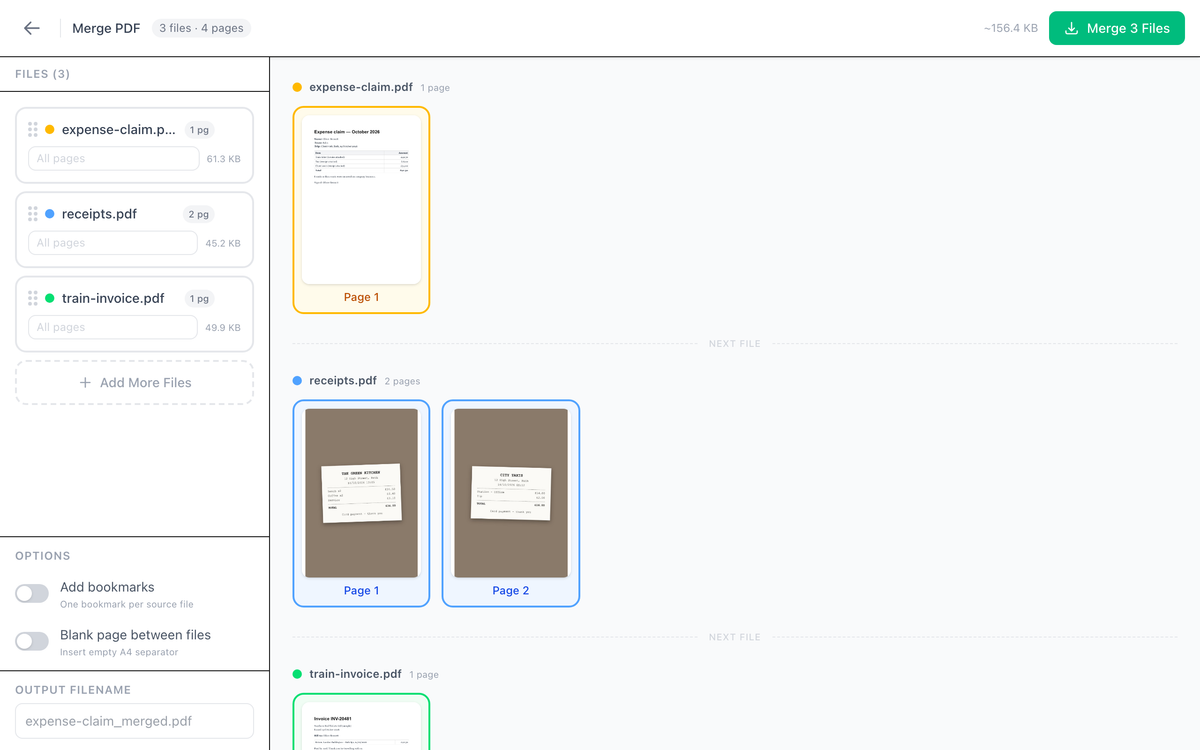
Before you press Merge:
- Order: drag the files in the list on the left. Here the claim goes first, then the receipts, then the invoice.
- Page ranges: leave "All pages", or type a range such as 1-3, 5 next to a file to include only those pages.
- Bookmarks: switch on Add bookmarks to get one bookmark per file, named after it, so the reader can jump straight to "receipts".
- Blank page between files: adds an empty A4 page between each file, which helps if the PDF will be printed double-sided.
Then press Merge and the combined PDF downloads. When we merged our test files, the browser sent no files anywhere. Everything was done on the page.
What the combined PDF keeps, and what it doesn't
- Text stays selectable. Merge copies each page as it is. In our test, the words from the Word file and the invoice could still be copied out of the merged PDF.
- Photo pages are pictures. The words on a photographed receipt can't be searched or copied. If that matters, run the merged file through OCR PDF, which adds a hidden text layer to scanned and photographed pages.
- Page sizes stay as they were. Merge doesn't resize pages, which is why step 2 suggests A4.
- Bookmarks in the original files aren't carried over. The Add bookmarks option makes new ones, one per file.
- Password-protected PDFs: Merge asks for the password, or lets you skip that file. The merged PDF has no password. Add one afterwards with Protect PDF if it needs one.
- Too big to email? Photos add size fast. Compress PDF can shrink the merged file. If the smaller result is the one with every page redrawn as a picture, the text is no longer selectable, so check before you send it.
Can you do it in one step?
Yes, with some other services. Smallpdf's and PDF24's merge pages say they accept Word files and images directly, not just PDFs, and convert them for you (both pages checked on 26 October 2026). They work by uploading all your files to their servers, and both say the files are deleted automatically after one hour.
Our route takes two extra steps, but your photos and PDFs stay in your browser the whole time, and if you save the PDF from Word, nothing is uploaded at all. Choose whichever suits the files you're sending.
Limits to know about
- Word files over 4 MB can't go through our Word to PDF tool. Save the PDF from Word instead, or make the pictures in the document smaller.
- HEIC, GIF, BMP and TIFF images aren't taken by Image to PDF. Use JPG, PNG or WEBP.
- Image to PDF's A4, Letter and Legal pages are portrait only. For a landscape photo, Fit to Image keeps the page the shape of the picture.
That's the whole job: Word to PDF, photos to PDF, then merge the PDFs into one.
Frequently Asked Questions
Can I combine a Word file and a PDF without converting the Word file first?
Are my files uploaded when I combine them?
How do I merge JPG and PDF files into one document?
Will the text in the combined PDF still be searchable?
Can I add iPhone photos (HEIC)?
Is there a limit on file size or number of files?
Try these tools next

Merge PDF
Combine multiple PDF files into a single document in seconds.

Word to PDF
Convert .doc and .docx files to PDF with selectable text, embedded fonts, and accurate formatting. Free, unlimited — or upgrade to Adobe quality for $0.99 for tagged accessibility-grade PDFs.

Image to PDF
Combine JPG, PNG and WEBP images into one PDF, one page per image. Drag them into order and fit each page to its picture or use A4, Letter or Legal.

OCR PDF
Turn scanned PDFs and image files into searchable, editable text using Optical Character Recognition (OCR) for a live preview. Supports 16 languages.

Compress PDF
Shrink large PDFs for email, web upload, or cloud storage. Our compression preserves image clarity and text sharpness — you choose the quality level.