
Screenshot any webpage
Visible tab, full page, region, element, your whole screen, or all tabs at once. Annotate, redact, beautify with wallpaper backdrops, and run OCR — then save as PNG, JPG, or PDF. 100% free, and your screenshots stay in your browser.
 Free Chrome extension
- Free, no account
- Six capture modes
- PNG, JPG or PDF
Made for Chrome on a computerSend yourself the link, then open it in Chrome on your computer to add it.
6 modes
Capture anything on screen
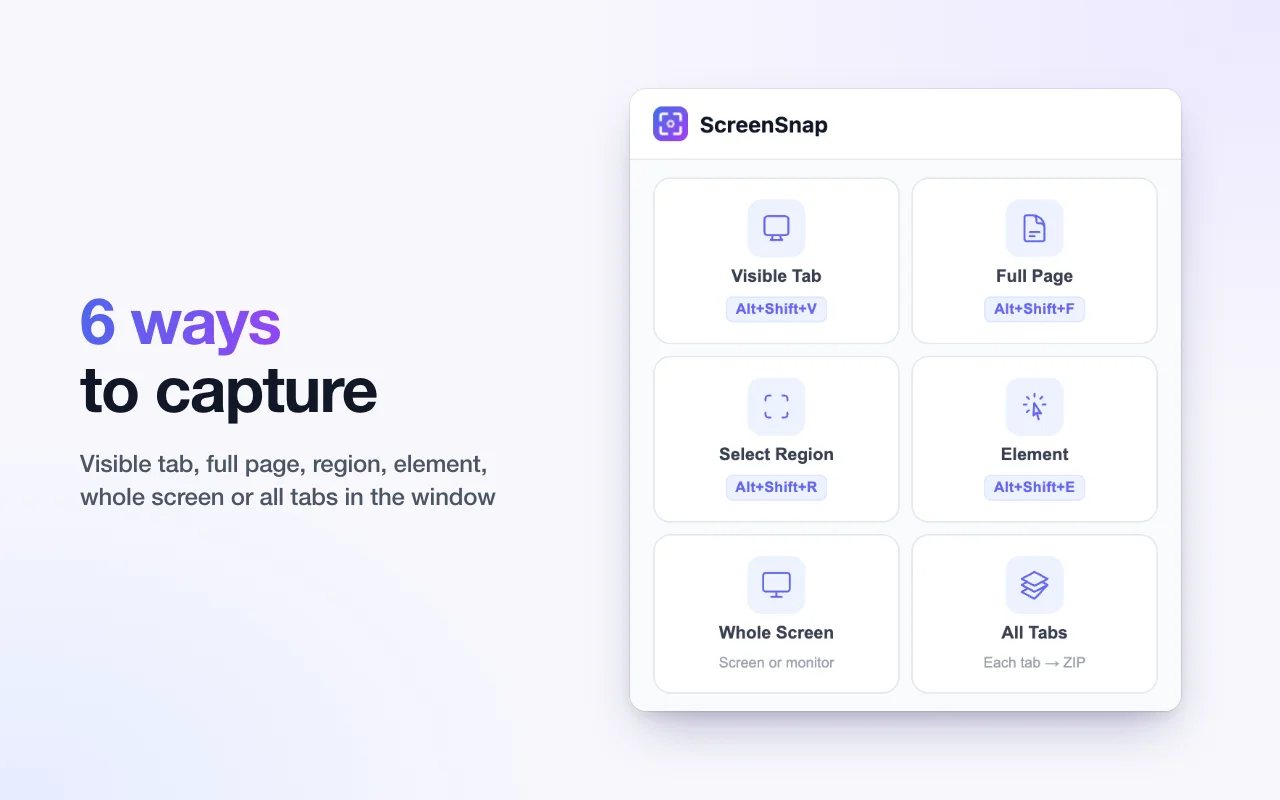
Visible area, full page scroll, selected region, a single HTML element, your whole screen or a second monitor, or every open tab at once — all in one extension.
- Visible TabCapture exactly what's on screen right now.
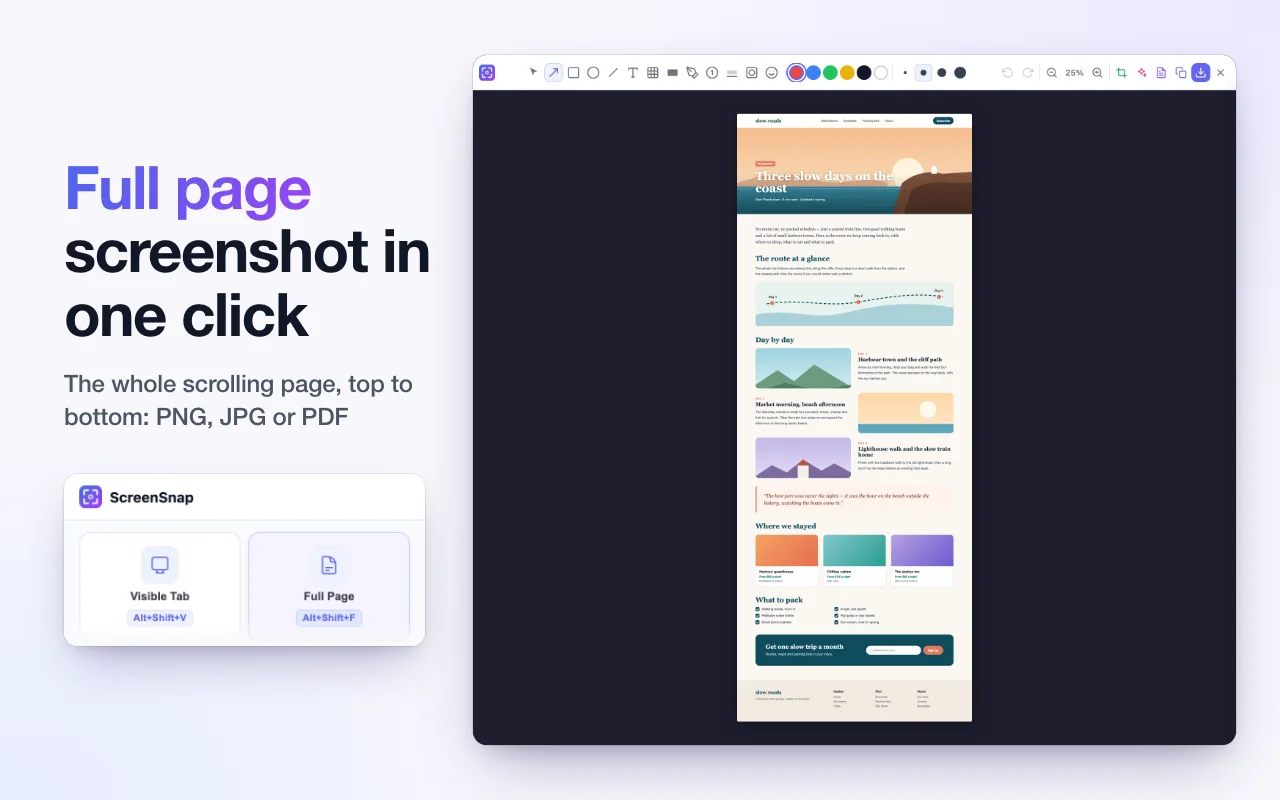
- Full PageScroll-and-stitch the entire page top to bottom.
- Select RegionDraw a rectangle around any part of the page.
- ElementClick any DOM element to capture just that node.
- Whole ScreenCapture your entire screen, a window, or a second monitor.
- All TabsEvery tab in the window at once — as a ZIP of images or one combined PDF.
Editor
Edit before you save
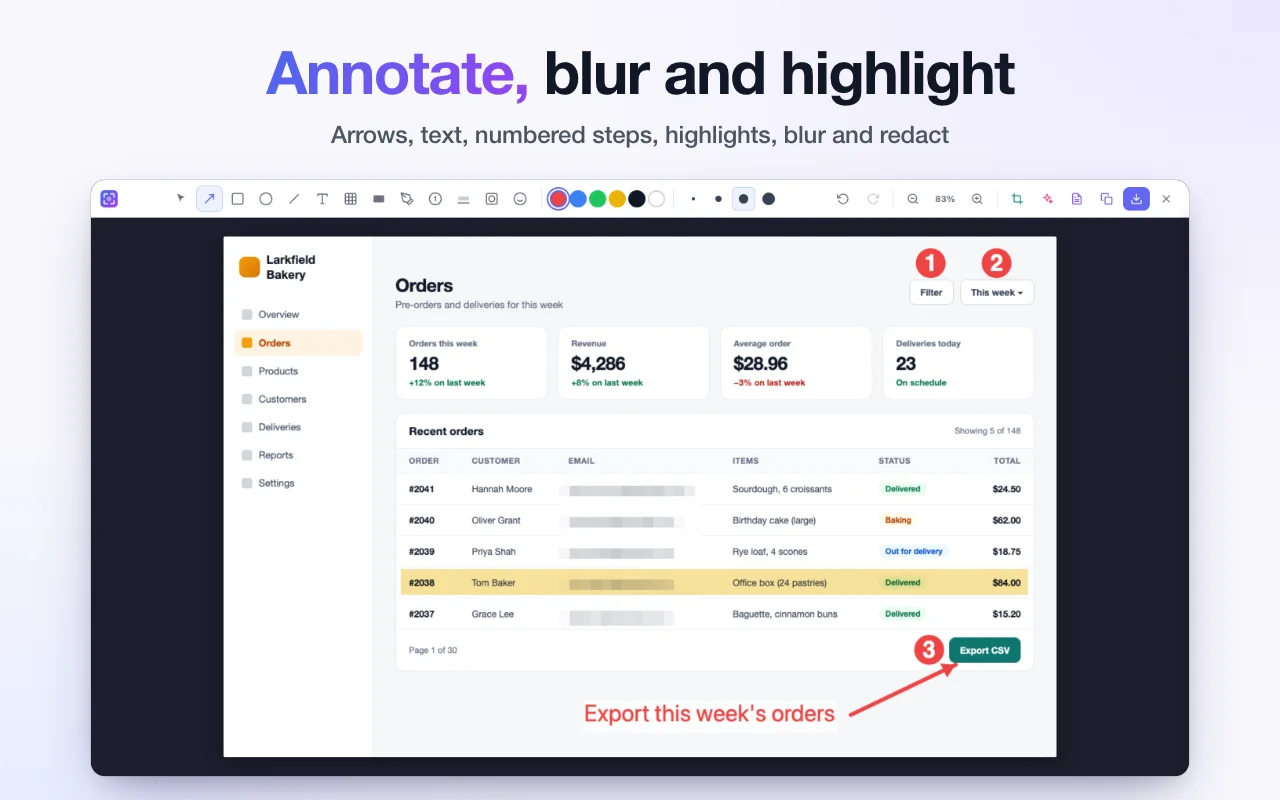
Add text labels, arrows, shapes, freehand drawing, numbered steps, highlighter, spotlight, and emoji. Blur or redact sensitive data, then crop with aspect-ratio presets. Move, resize, or re-edit anything — with undo and redo (50 steps).
- Numbered steps
- Highlighter
- Spotlight
- Redact
- Emoji
- Crop presets
Beautify with backdrops. Drop your screenshot onto a gradient or wallpaper for a polished, share-ready look.
Built-in OCR
Extract text from screenshots
One click to run OCR on your capture. 16 languages, confidence highlighting, find & replace, and CSV export for detected tables. Text is read in your browser with Tesseract.js WASM; the engine and language files download from oneclickpdf.net, so OCR needs a connection.
Need full PDF OCR? Try our web tool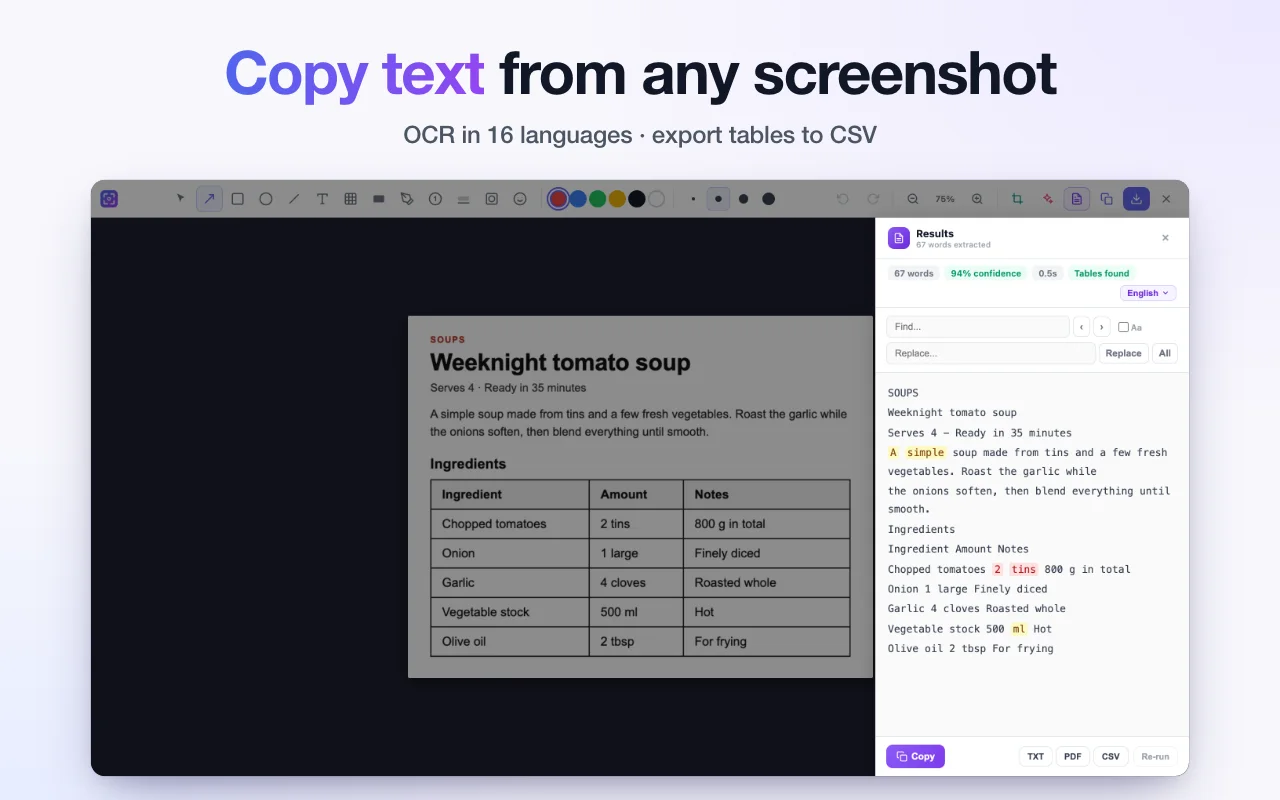
3 formats
PNG, JPG, or PDF
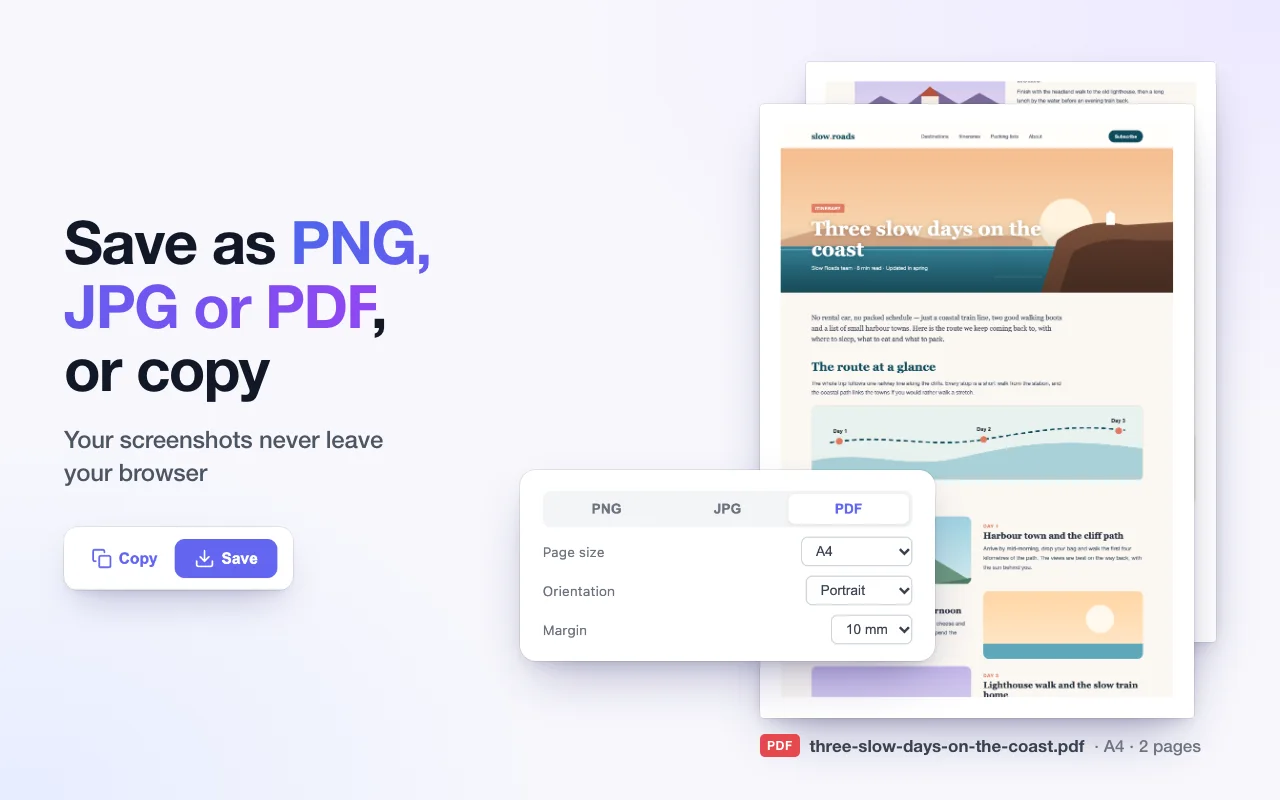
Choose your output format before or after capture. PDF mode includes full page-size, orientation, and margin controls — ready for print or email. Copy straight to the clipboard, or name files automatically with custom filename templates.
- PNGSharpest for text. On Retina screens and zoomed-in pages it's made from a high-quality JPEG capture.Largest file size
- JPGCompressed with configurable quality (0.5 – 1.0).Smaller file size
- PDFA4, Letter, or fit-to-image. Portrait or landscape. 0 – 20 mm margins.Best for printing
How it works
Choose capture mode
Click the ScreenSnap icon and pick: visible tab, full page, region, element, whole screen, or all tabs.Edit & annotate
Add text, arrows, shapes, or numbered steps. Blur or redact, crop, then beautify with a backdrop.Save in any format
Download as PNG, JPG, or PDF with configurable page size and margins.
In Your Browser
All capture and editing runs in your browser. Your screenshots never leave it.
No Account
Install and use immediately. No signup, no login, no email.
Free
No paywalls, no premium tiers, no feature gates. Everything included.
From the makers of OneClickPDF — 59 PDF tools
A free editor, OCR and six capture modes
Of the four screenshot extensions we compared, GoFullPage and FireShot keep their editors in a paid plan, and Awesome Screenshot and Nimbus share captures through an online account. ScreenSnap captures, edits and reads text for free, and never uploads your screenshots.
| Feature | GoFullPage | ScreenSnap |
|---|---|---|
| Price | Free; editor is Premium | Free, no paid tier |
| Full-page capture | Yes | Yes |
| Export | PNG, JPEG, PDF (several paper sizes) | PNG, JPG, PDF (A4, Letter, fit; portrait or landscape) |
| Crop and annotate | Premium editor | Free editor |
| Blur / redact | Not listed | Free |
| Region, element, whole screen, all tabs | Not listed | Yes |
| Delayed capture | Not listed | 3/5/10 s, or 1/2/5 min |
| OCR (copy text) | Not listed | 16 languages (needs a connection) |
| Permissions | No extra permissions | Two install warnings (clipboard, downloads); all sites and screen capture asked for only when first used |
| Data collected (store listing) | None declared | Anonymous usage stats; can be switched off |
GoFullPage's column is from its own pages, checked October 2026. Full ScreenSnap vs GoFullPage comparison
Compared with other screenshot extensions
ScreenSnap vs GoFullPage
GoFullPage alternative with a free editor
ScreenSnap vs Awesome Screenshot
Awesome Screenshot alternative
ScreenSnap vs FireShot
FireShot Pro alternative
ScreenSnap vs Nimbus Screenshot
Nimbus Screenshot alternative
Privacy by design
- All screenshot capture, editing, and OCR processing runs locally in your browser. Your screenshots never leave your browser.
- The editor is a page of oneclickpdf.net that opens in a new tab. Your browser loads that page, and the OCR engine and language files, from our site, so editing and OCR need a connection. The screenshot is handed to the page inside your browser and is not uploaded; if the page can't be reached, the capture is saved to Downloads instead.
- Screenshots are saved directly to your device as ordinary downloads. No cloud storage involved.
- Capture settings are saved with
chrome.storage.sync, so Chrome syncs them between your devices if you have sync turned on. The editor keeps your last colour, thickness, and backdrop in this site's local storage in your browser. - We collect anonymous, opt-out usage stats, sent to Google Analytics — only feature and editor-tool names, capture modes, formats, OCR language codes, the extension version, and error codes (before version 1.3.0, a short error message), never your screenshots, the text you type or extract, or page content. Turn it off any time with the "Share anonymous usage data" switch in the popup. Details are in our privacy policy.
- No tracking across sites. No account required.
Permissions explained
From version 1.4.0, Chrome's install dialog warns about two things only: copying to your clipboard and managing your downloads. ScreenSnap works on the tab you click it on. The two optional permissions below are asked for only the first time you use the feature that needs them, and saying no just leaves that feature off.
activeTabCapture the tab you click ScreenSnap on, or press one of its shortcuts in. Chrome gives this for that tab only, while it stays on the same site.scriptingAdd the capture script to that tab for full-page scrolling, region selection, and element picking. Nothing is added to a page until you start a capture.storageSave your capture settings (synced by Chrome if you use sync) and a few items kept on your device, such as the file counter.offscreenMake PDFs and ZIP files, and prepare a capture for the clipboard or the editor, in a hidden document.downloadsSave captured screenshots directly to your Downloads folder.clipboardWriteCopy a screenshot to your clipboard when Copy to clipboard is on.alarmsRun a scheduled capture when you pick a delay of one minute or more.Access to all sites (optional)Asked for the first time you use All Tabs, which captures every tab in the window, not only the one you clicked on.desktopCapture (optional)Asked for the first time you use Whole Screen: shows Chrome's picker for your entire screen, another window, or a second monitor.
Ready to capture any webpage?
Free, no account needed, and your screenshots stay in your browser.