

PickText OCR
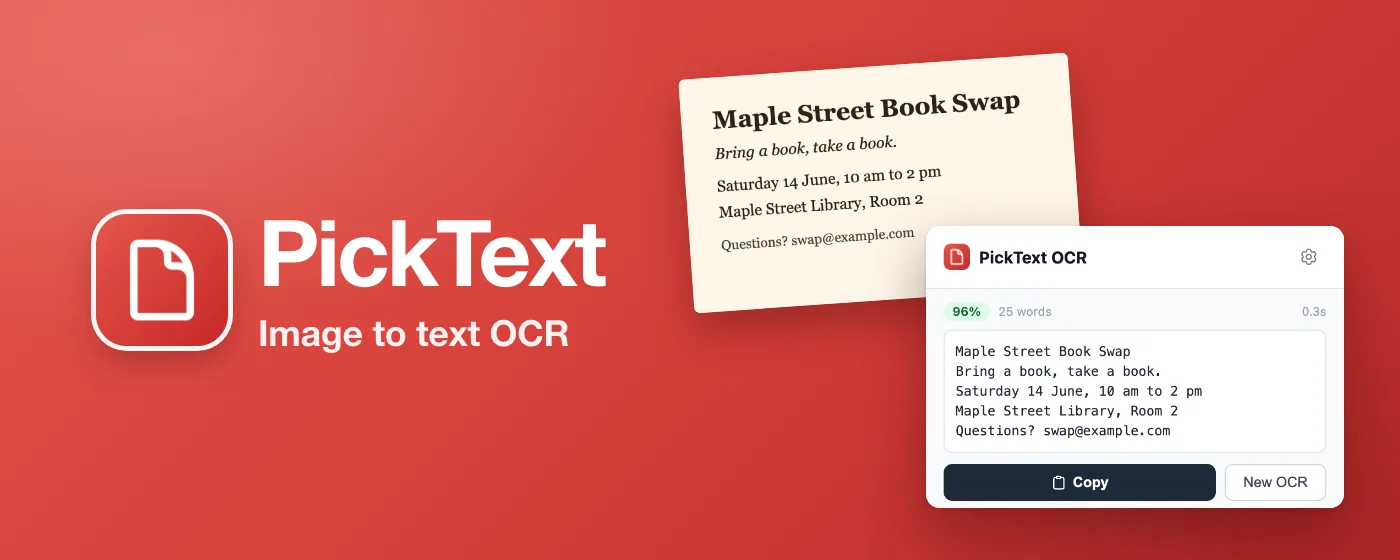
Copy text from any image
See text trapped in an image? Right-click it and copy the text out. Works on screenshots, photos and scanned documents with printed text.
- 16 languages
- English works offline
- Reads tables too
- Free, no account
Simple, free tools that work right inside Chrome. Copy text from images, capture and annotate screenshots — all without leaving your browser.
Made for Chrome on a computerSend yourself the link, then open it in Chrome on your computer to add it.
Copy text from any image
See text trapped in an image? Right-click it and copy the text out. Works on screenshots, photos and scanned documents with printed text.

Screenshot, edit, and save
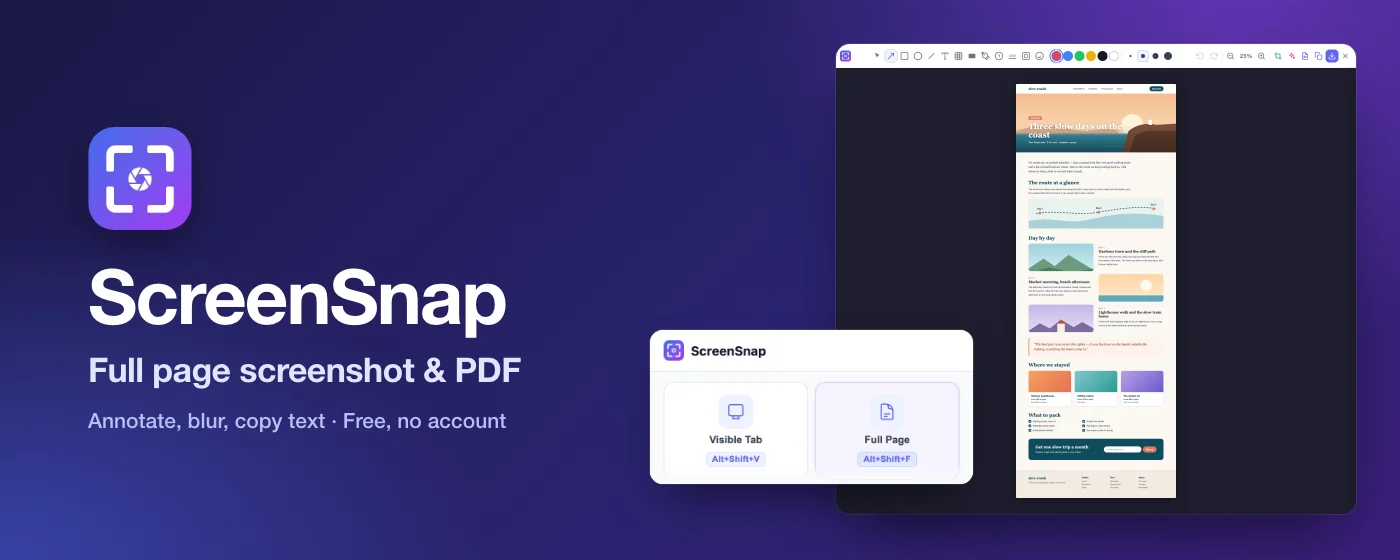
Capture any webpage — or your whole screen: full page, a region, a single element, or every tab in a window at once. Annotate, redact, and beautify with wallpaper backdrops, then save as PNG, JPG, or PDF.
Both extensions read and edit your images and screenshots on your computer. They're never uploaded.
All the heavy lifting happens right on your computer. Your images and screenshots are never sent to any server.
Your images and screenshots never reach us, and there's no account. ScreenSnap sends anonymous feature stats (never your screenshots), which you can switch off; PickText collects no usage data.
Install and start using immediately. No signup, no trial limits, no hidden fees. Just tools that work.
PickText OCR · How it works
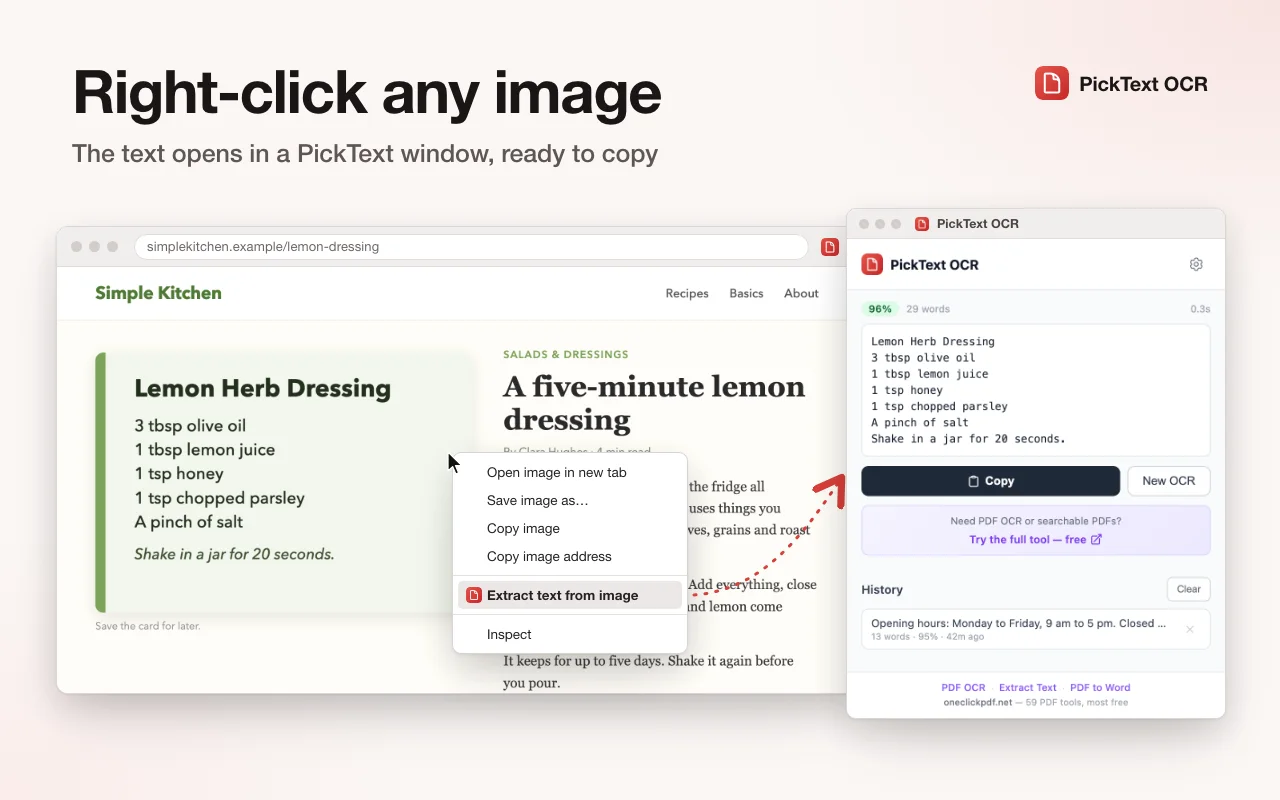
On any webpage, right-click an image with text in it
The extension reads the image and shows you the text
One click to copy. Paste it wherever you need it
ScreenSnap · How it works
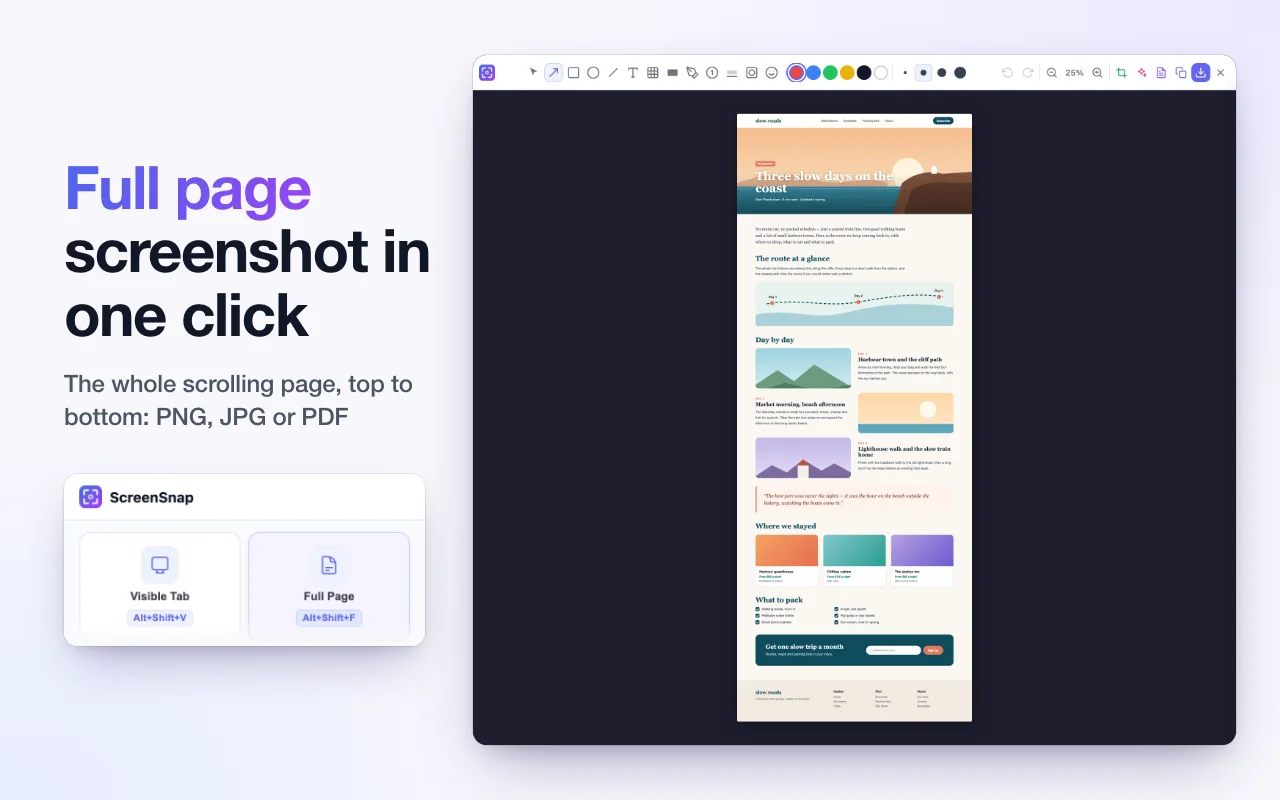
Visible area, full page, region, element, whole screen, or all tabs
Annotate, highlight, redact private info, crop, or add a wallpaper backdrop
Download as PNG, JPG, or PDF — or paste directly
More free browser tools are on the way. Have an idea for something that would make your life easier?
Suggest an Extension59 tools to merge, split, compress, sign, and convert PDFs, most of them free. Most work right in your browser.


